Magic Mirror on Surface Pro
Brian
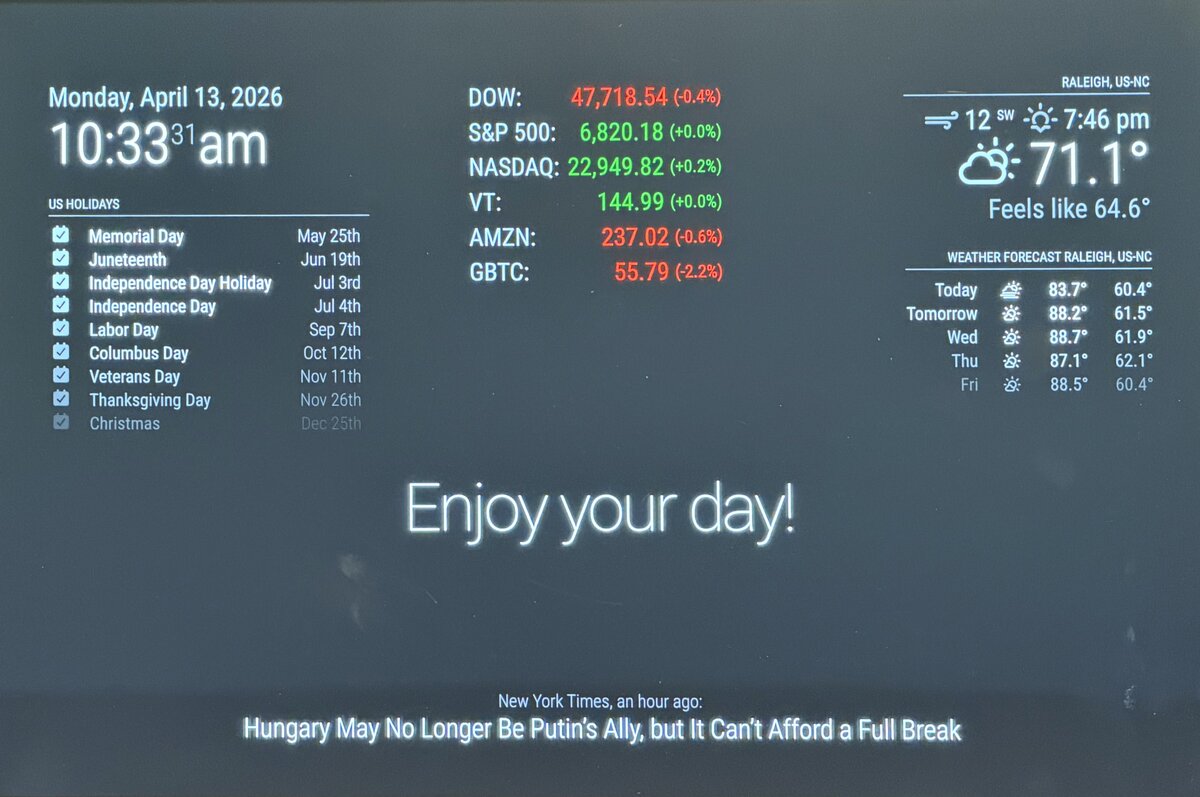
I was talking to Jeff Barr last week and he mentioned his Magic Mirror project from a couple of years ago. I have been working on a goal tracker workflow in Obsidian (more on that soon) and thought this would be the perfect detour to distract me from achieving those goals. Most people run MagicMirror on a Raspberry Pi, but I had other plans.
I have very little space for my “mirror” but I had a old Surface Pro collecting dust in a drawer. It’s a 2017 machine with an i5, 8 GB of RAM, and a 12" PixelSense display. Too nice to throw away, but too old to do any real work on. This was perfect for a tight space. The Surface Pro is wildly overpowered for this job, which means everything is buttery smooth and the high-resolution screen looks fantastic.
This post walks through the entire process: wiping Windows, installing Ubuntu with a Surface-optimized kernel, setting up MagicMirror, and configuring the machine to boot straight into kiosk mode. If you have an old Surface Pro sitting around, this is a fun weekend project. No more excuses. Time to focus on those goals.
Why Ubuntu
I went with Ubuntu 24.04 LTS for a few reasons. The linux-surface project maintains a patched kernel with proper support for Surface hardware (e.g. touchscreen, Wi-Fi, power management). The Surface Pro 5 is well-tested by the linux-surface community, so I knew going in that the hardware would work. Secure Boot is even supported out of the box, though I never got it to work.
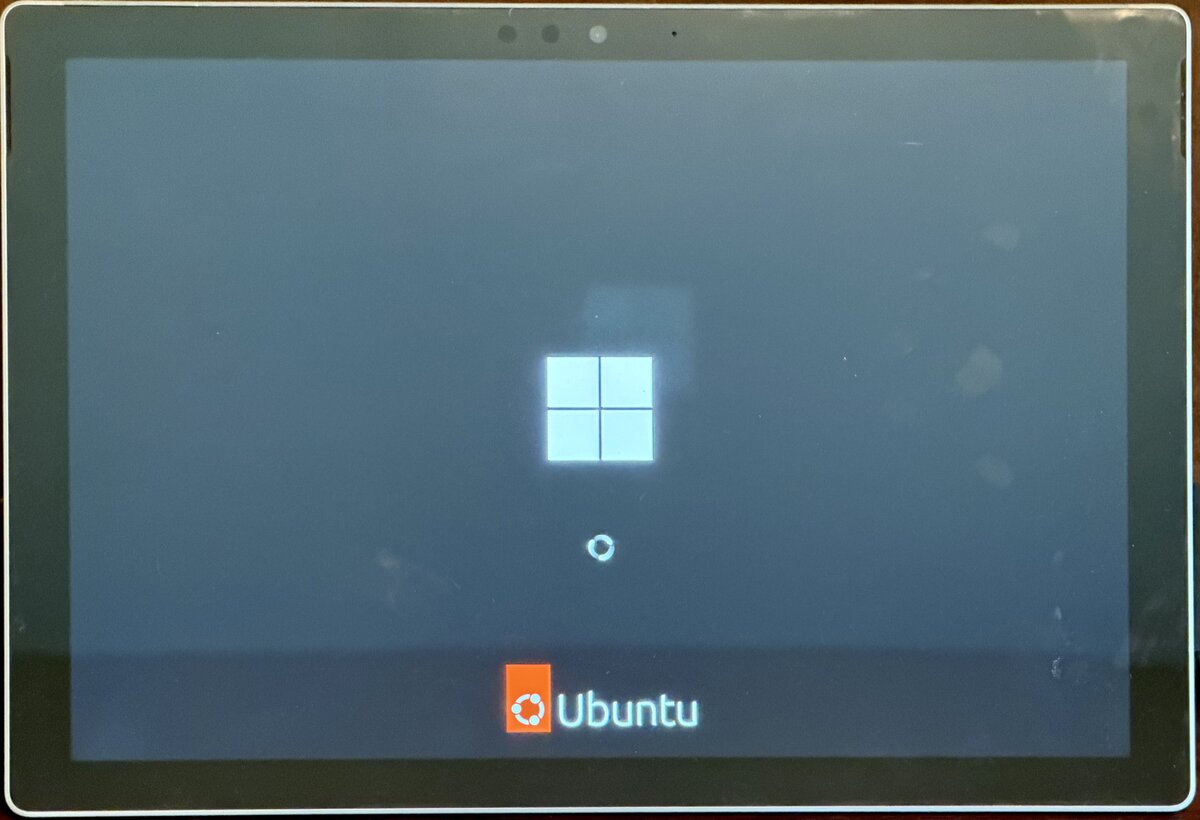
It was surreal to see the Windows and Ubuntu logo on the same screen.
Installing Ubuntu on the Surface Pro
I downloaded the ISO and loaded it onto a bootable USB. Booting from USB on a Surface Pro is a little different than a typical PC. Shut down the Surface completely, then hold the Volume Down button while you press and release the Power button. Keep holding Volume Down until you see the USB boot.
Once you’re in the Ubuntu installer, it’s straightforward. I chose Erase disk and install Ubuntu since this machine is dedicated to the mirror. If you want to keep Windows around for firmware updates, you can install alongside it instead, but a full wipe is cleaner for a single-purpose device.
The linux-surface Kernel
The stock Ubuntu kernel will boot and run, but you’ll want the linux-surface kernel for proper touchscreen support, better power management, and other Surface-specific fixes. After booting into the fresh Ubuntu install, open a terminal and add the linux-surface repository.
First, import the signing key:
|
|
Then add the repo and install the kernel:
|
|
Finally, install the CPU microcode and firmware updates:
|
|
The Surface Pro uses Secure Boot, but as I mentioned, I never got it to work. I just disabled UEFI secure boot.
Installing MagicMirror
MagicMirror requires Node.js 22.14 or higher. I use NVM to manage Node versions since it keeps things isolated from the system packages.
|
|
Verify with node -v to make sure you’re on v22.x, then clone and install MagicMirror:
|
|
Once it finishes, copy the sample config and do a test run:
|
|
MagicMirror should launch in a full-screen Electron window. Press Ctrl+Q to quit. If you see the default clock, weather, and news modules, everything is working.
Kiosk Mode
This is where you turn a laptop running MagicMirror into an always-on smart display. There are a few things to configure: disable sleep, enable auto-login, auto-start MagicMirror, and hide the mouse cursor.
Disable Sleep and Screen Blanking
You don’t want the display turning off or the machine going to sleep. Mask the relevant systemd targets and adjust the GNOME power settings:
|
|
Auto-Login
Edit /etc/gdm3/custom.conf and add these lines under the [daemon] section:
|
|
Replace YOUR_USERNAME with your actual username. This skips the login screen on boot.
Auto-Start MagicMirror
First, create a start script that sets up the NVM path (GNOME’s login session doesn’t source your .bashrc):
|
|
Then, create the autostart entry:
|
|
Again, replace YOUR_USERNAME with your actual username.
Hide the Mouse Cursor
A visible cursor on a smart mirror is distracting. Install unclutter and add it to autostart:
|
|
Wrapping Up
The whole project took about two hours, though half of that was fighting with secure boot. The Surface Pro makes a surprisingly good MagicMirror platform — the high-DPI screen is gorgeous, there’s more than enough processing power, and the linux-surface project has done the hard work of making the hardware play nicely with Linux. If you have an old Surface collecting dust, this is a great way to give it a second life.